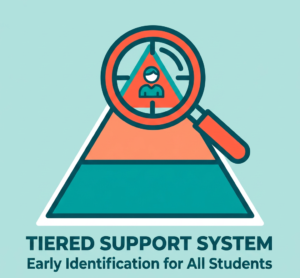
A school administrator and teacher reviewing intervention scheduling together — the kind of coordination an RTI scheduler is built to simplify.

Middle school administrators know the feeling all too well: it’s Tuesday afternoon, three teachers need extra help sessions scheduled, the community service coordinator is asking about volunteer hours, and someone in the front office just realized attendance tracking for last week’s intervention block never got logged. If this sounds familiar, you’re not alone — and you’re also not without a solution.
An RTI scheduler exists precisely to untangle this kind of chaos. Whether you’re running a school-wide Response to Intervention program, coordinating service learning opportunities, or simply trying to make sure struggling students get the extra help they need without falling through the cracks, the right scheduler changes everything.
In this guide, we’ll walk through what an RTI scheduler actually does, why middle schools in particular benefit from one, and how to put best practices into action so your intervention periods run smoothly from day one. By the end, you’ll have a clear picture of how to schedule effectively, track attendance accurately, and build a program that genuinely goes toward enriching students.
What Is an RTI Scheduler, and Why Does It Matter?
At its core, an RTI scheduler is a tool — often software-based — designed to organize Response to Intervention (RTI) blocks, assign students to the right support groups, and keep everyone (teachers, counselors, and administrators) on the same page.
Response to Intervention itself is a tiered academic framework used across the United States to identify students who need additional support and provide it before gaps widen. Tier 1 covers general classroom instruction, Tier 2 offers targeted small-group help, and Tier 3 provides intensive, individualized intervention. According to the National Center on RTI at the American Institutes for Research, an effective framework rests on four components: universal screening, continuous progress monitoring, a multi-level prevention system, and data-based decision making — which is exactly what a well-run scheduling system is built to support. Managing which students belong in which tier — and updating that as data changes — is a moving target. That’s where a dedicated scheduler earns its keep.
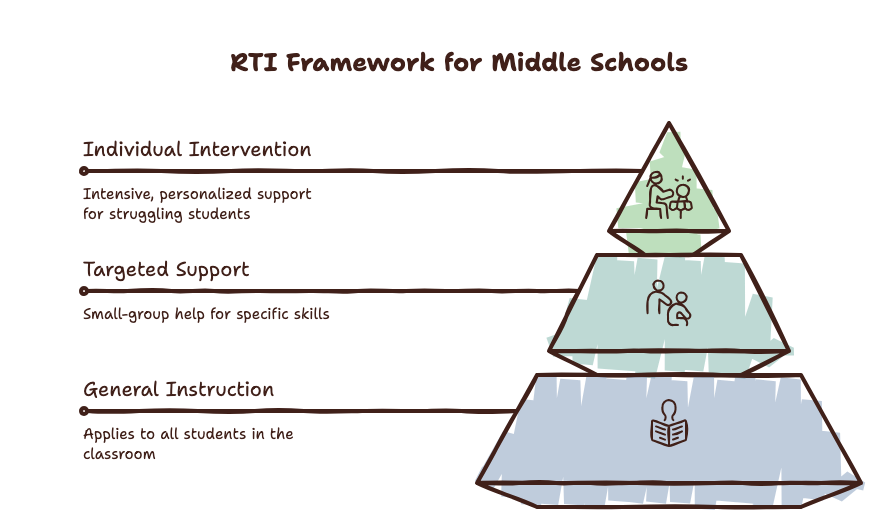
The three tiers of the RTI framework — an RTI scheduler is what keeps students moving through these levels accurately as data changes.
Without a system, RTI scheduling often lives in spreadsheets, sticky notes, or someone’s memory. That works for a few weeks. Then a new student enrolls, a teacher goes on leave, or a data review shifts twelve kids into a different intervention group, and the whole thing falls apart. A purpose-built RTI scheduler prevents that collapse by centralizing the process.
Quick Answer: An RTI scheduler is software that organizes intervention groups, manages teacher/room assignments, and tracks attendance for Response to Intervention programs — replacing manual spreadsheets with one centralized, updatable system.
Why Middle Schools Especially Need a Reliable RTI Scheduler
Middle schools face a unique scheduling puzzle. Unlike elementary schools with self-contained classrooms, or high schools with more flexible credit-based schedules, middle schools typically run on rotating block schedules with multiple teachers touching each student every day. Layer an intervention block, an extra help period, and community service or enrichment activities on top of that, and you get a logistical knot that’s genuinely hard to untie by hand.
Here’s why middle schools benefit so much from a dedicated RTI scheduler:
Multiple Teachers, One Student
A seventh grader might need reading intervention from one teacher and math support from another. A scheduler prevents double-booking or conflicting assignments.
Frequent Data Cycles
Middle schools often run progress monitoring every few weeks, meaning student groupings shift regularly. Manual rescheduling doesn’t scale.
Enrichment and Service Learning Demands
Many middle schools blend intervention time with service learning and community service opportunities, requiring flexible, rotating blocks rather than static ones.
Staff Accountability
Administrators need visibility into which students attended which session, which staff led it, and whether it’s working — which circles back to solid attendance tracking.
If your school is exploring options, resources like the RTI Scheduler Hub guides offer practical walkthroughs tailored to these exact middle school challenges.
Core Features of an Effective RTI Scheduler
Not all scheduling tools are created equal. When evaluating or building out your own RTI intervention scheduling software — or comparing it against broader MTSS scheduling tools used for Multi-Tiered Systems of Support — look for these essential features.
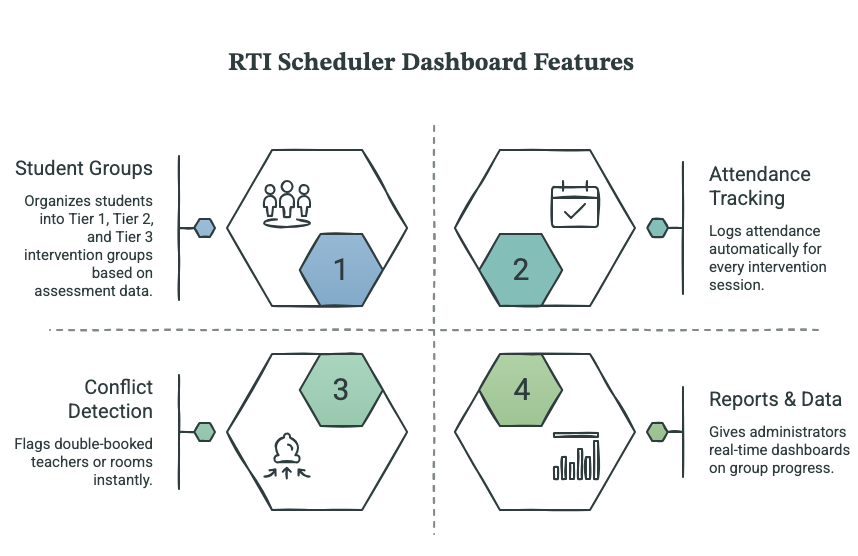
The four features every RTI scheduler dashboard should offer, at a glance.
1. Flexible Grouping and Regrouping
Students’ needs change. A scheduler should let you regroup students quickly based on updated assessment data without rebuilding the entire schedule from scratch.
2. Built-In Attendance Tracking
Reliable attendance tracking isn’t optional in an RTI framework — it’s often required for compliance and absolutely essential for measuring whether interventions are working. A good RTI scheduler logs attendance automatically or with minimal manual entry, and flags chronic absenteeism in intervention blocks so staff can intervene early.
3. Teacher and Room Conflict Detection
Nothing derails a schedule faster than double-booking a teacher or a room. Automated conflict detection saves administrators hours of manual cross-checking.
4. Reporting and Data Visibility
Administrators, counselors, and teachers all need different views of the same data. Look for dashboards that show group composition, session frequency, and progress over time at a glance.
5. Integration With Community Service and Enrichment Programs
Many middle schools use their intervention block creatively — combining academic support with community service projects or extracurricular enrichment for students who don’t need remediation. A flexible RTI scheduler accommodates both tracks in the same system rather than requiring separate spreadsheets.
Benefits of an RTI Scheduler at a Glance
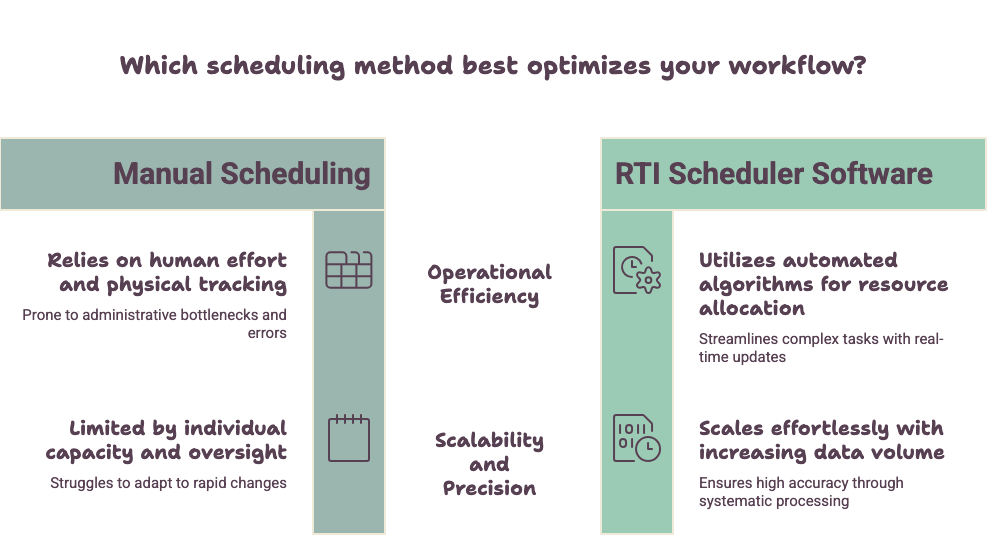
Manual scheduling relies on individual effort and breaks down as data volume grows; RTI scheduler software automates the same work and scales with it.
| Benefit | Manual Process (Spreadsheets) | With an RTI Scheduler |
| Regrouping students | Hours of manual re-entry per review cycle | Minutes, with automatic updates |
| Attendance tracking | Prone to gaps and delayed logging | Logged in real time, flags absences automatically |
| Conflict detection | Caught late, often after double-booking happens | Flagged instantly before it occurs |
| Data visibility | Scattered across staff inboxes and files | Centralized dashboard for all stakeholders |
| Staff time saved | High administrative burden | Significantly reduced — more time for instruction |
| Compliance readiness | Difficult to produce audit-ready records quickly | Reports generated on demand |
Best Practices for Scheduling RTI Blocks
Even the best software won’t fix a poorly designed process. Here are best practices that consistently produce smoother, more effective intervention periods.
Build the Schedule Around Data, Not Convenience
It’s tempting to group students by what fits neatly into existing periods. Resist that urge. Base groupings on current assessment data — reading levels, math benchmarks, behavior data — and let the schedule adapt to the data, not the other way around.
Keep Groups Small and Purposeful
Research on effective intervention consistently points to smaller group sizes producing better outcomes, particularly at Tier 2 and Tier 3. A scheduler that makes it easy to keep groups under six or eight students pays off in results.
Schedule Regular Review Cycles
Set a recurring cadence — every four to six weeks is common — to review data and adjust groupings. Build this review directly into your scheduling calendar so it doesn’t get skipped during busy stretches of the semester.
Communicate Schedules Clearly to Staff and Families
A scheduler is only useful if the people relying on it can actually see it. Share updated schedules with teachers well before the intervention block begins, and consider a simplified version for families so they understand what extra help their child is receiving and why.
Use the Block for More Than Remediation
Some of the most successful middle school programs use non-intervention time within the same block for service learning, clubs, or enrichment — giving students who are on track a meaningful, engaging use of that period rather than free time. This also reduces the stigma sometimes associated with intervention blocks, since all students are doing something purposeful.
Here’s what that looks like as a sample weekly rotation:
| Day | Tier 2/3 Academic Support | Community Service & Enrichment | Progress Monitoring |
| Monday | Small-group reading & math intervention | — | — |
| Tuesday | — | Rotating volunteer & enrichment activities | — |
| Wednesday | Small-group reading & math intervention | — | — |
| Thursday | — | Rotating volunteer & enrichment activities | — |
| Friday | Small-group reading & math intervention | — | Recurring review checkpoint (every 4–6 weeks) |
A scheduler makes rotations like this realistic to sustain — swapping a Tuesday enrichment slot for an added intervention session, for example, takes minutes instead of reworking the whole week by hand.
Real-World Example: According to RTI consultant Susan Fitzell, M.Ed., a high school in southwestern New Hampshire that had adopted a daily intervention block ran into serious friction with an off-the-shelf scheduling tool — it didn’t fit their workflow, was slow, and left teachers spending weekends manually scheduling students for the following week, which hurt morale. The school eventually moved to a purpose-built RTI scheduling platform, Enriching Students , designed around how teachers and administrators actually needed to work. The case illustrates a pattern seen across many schools: generic tools bolted onto an RTI block often create more work than they save, while software built specifically for intervention scheduling tends to reduce the administrative load teachers report. (Source: Susan Fitzell, “Meeting the Challenges of RTI Scheduling”)
Enriching Students Through Community Service Integration
One underused strength of a well-run RTI scheduler is its ability to support enriching students beyond pure academics. When a school pairs its intervention system with structured community service or service learning options, it creates a more balanced, student-centered block.
For example, a middle school might use its RTI period for:
- Tier 2/3 students receiving targeted reading or math support
- Tier 1 students rotating through community service projects — such as school garden maintenance, peer tutoring, or local nonprofit partnerships
- Enrichment clubs for students who’ve met benchmarks and want additional challenge
Scheduling all three tracks manually is nearly impossible to sustain long-term. A dedicated RTI scheduler makes it realistic by letting administrators build recurring rotations, track participation, and adjust rosters as students move between tiers or complete service requirements.
This kind of integrated approach also strengthens your school’s case for the program when talking to families, school boards, or accreditation reviewers — it shows the intervention block isn’t just remedial, it’s a genuine part of the school’s broader educational mission of enriching students.
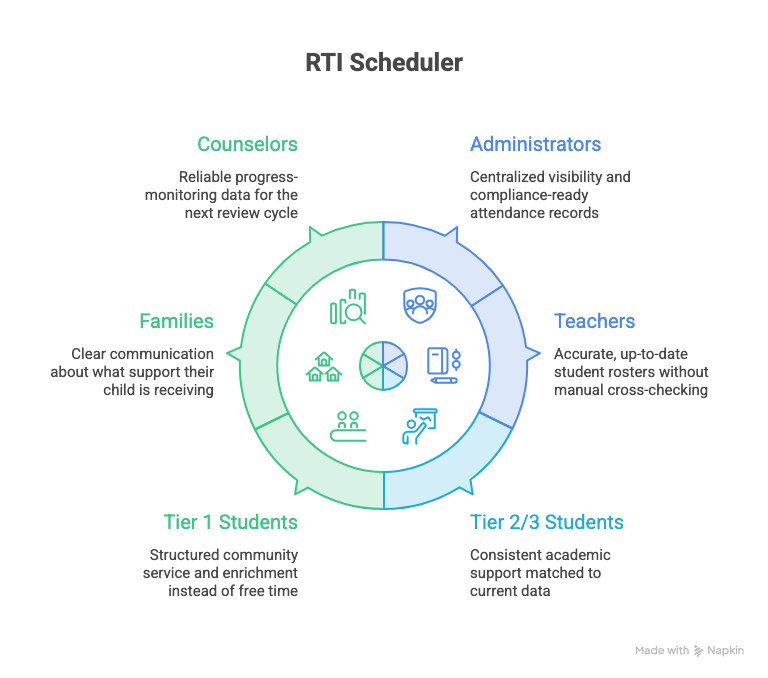
Every stakeholder in the RTI process — from administrators to families — gets something different out of a well-run scheduler.
Who Benefits from an RTI Scheduler — and How
| Stakeholder | Key Benefit |
| Administrators | Clear, centralized visibility into every intervention group, compliance-ready attendance records, and less time spent resolving scheduling conflicts |
| Teachers | Accurate, up-to-date rosters without manually cross-checking spreadsheets; less confusion about who belongs in which group |
| Students (Tier 2/3) | Consistent, timely academic support matched to current data, delivered in small, purposeful groups |
| Students (Tier 1) | Structured community service and enrichment options instead of unstructured free time |
| Families | Clearer communication about what extra help or enrichment their child is receiving and why |
| Counselors / RTI Coordinators | Reliable progress-monitoring data to guide the next review cycle |
Common Challenges (and How to Solve Them)
Even with a solid RTI scheduler in place, schools run into predictable friction points. Here’s how to handle the most common ones.
Challenge: Staff resistance to a new system. Solution: Involve teachers early in choosing or configuring the scheduler. Staff buy-in improves dramatically when the tool solves a problem they’ve personally experienced, rather than being imposed top-down.
Challenge: Inconsistent attendance data. Solution: Standardize how attendance is logged — ideally through the scheduler itself rather than a separate spreadsheet — and designate one point person responsible for weekly data checks. Consistent attendance tracking is the difference between a program you can prove works and one you’re just hoping works.
Challenge: Schedule doesn’t reflect real-time changes. Solution: Choose an RTI scheduler — or, more broadly, any MTSS scheduling tool — that updates dynamically and syncs with your student information system, rather than requiring manual re-entry every time a student’s group changes.
Challenge: Too many programs, not enough structure. Solution: Map out all your block’s components — intervention, enrichment, community service — visually before building the schedule. Tools and planning templates found at RTI Scheduler Hub can help structure this planning phase.
Frequently Asked Questions
What does an RTI scheduler actually do?
An RTI scheduler organizes students into appropriate intervention groups, manages teacher and room assignments, tracks attendance, and helps administrators adjust groupings as assessment data changes — all in one centralized system rather than scattered spreadsheets.
How often should RTI groups be updated?
Most schools review and update groups every four to six weeks, based on progress monitoring data. Some fast-paced Tier 3 interventions may require more frequent review, sometimes every two to three weeks.
Can an RTI scheduler handle both intervention and community service scheduling?
Yes. Many middle schools use the same block for tiered academic support and enrichment or service learning activities. A flexible scheduler accommodates both by allowing multiple rotation types within the same time period.
Is attendance tracking really necessary for RTI blocks?
Absolutely. Attendance tracking is often required for compliance reporting and is essential for evaluating whether an intervention is actually working. Missing attendance data makes it nearly impossible to judge a program’s effectiveness.
What size should intervention groups be?
Smaller is generally better, particularly for Tier 2 and Tier 3 support. Many schools aim for groups of four to eight students to maximize individualized attention and academic support.
Is an RTI scheduler the same as MTSS scheduling software?
They’re closely related. RTI scheduling tools are typically built for tiered academic intervention specifically, while MTSS scheduling tools cover a broader range — including behavior supports alongside academics. Many schools use the terms interchangeably since most modern platforms, including RTI intervention scheduling software, now support both frameworks.
Final Thoughts: Building an RTI Scheduler That Works for Your School
A well-designed RTI scheduler isn’t just an administrative convenience — it’s the backbone of a middle school’s ability to deliver timely academic support, track outcomes honestly, and create a block that genuinely serves every student, not just those receiving intervention. When scheduling, attendance tracking, and enrichment planning work together instead of living in separate systems, staff spend less time on logistics and more time actually helping students.
If your school is ready to simplify RTI scheduling and build a program that balances academic support with meaningful enrichment, start by exploring the practical guides at RTI Scheduler Hub or see how a dedicated platform like RTI Scheduler can bring your intervention block into one clear, manageable system.
Your teachers — and your students — will feel the difference by the next grading period.